




Using project templates in ClickUp Project Management allows you to start new projects quickly, in an organized and consistent manner. With this approach, all essential tasks, subtasks, dependencies, and assignees are automatically replicated, ensuring that nothing is overlooked and that processes are standardized.
In addition to saving time, templates help create a consistent work culture where all teams follow the same execution standards. This is especially useful in companies that manage multiple similar projects or that aim to maintain quality and traceability across all deliverables. This is the guide you should follow to optimize project templates in ClickUp:
1. Identify the project structure
Before creating a template, analyze which tasks and steps are repeated in similar projects. This includes main tasks, essential subtasks, milestones, and dependencies. It's also important to consider custom fields, assignees, and labels.
By carefully defining the initial structure, we ensure that each project initiated from the template follows a logical and efficient flow. This phase avoids common pitfalls, such as forgotten tasks or omitted critical steps, ensuring that all projects have a solid foundation from the start.
2. Create the base project in ClickUp
Create a standard project in ClickUp incorporating all identified elements and define tasks and subtasks, approximate deadlines, assignees, and custom fields.
This base project serves as an operational reference, allowing you to test the sequence of tasks and the logic of dependencies before transforming it into a template. The more detailed it is, the easier it will be for teams to replicate processes consistently and avoid manual adjustments in each new project.
3. Save as a project template in ClickUp
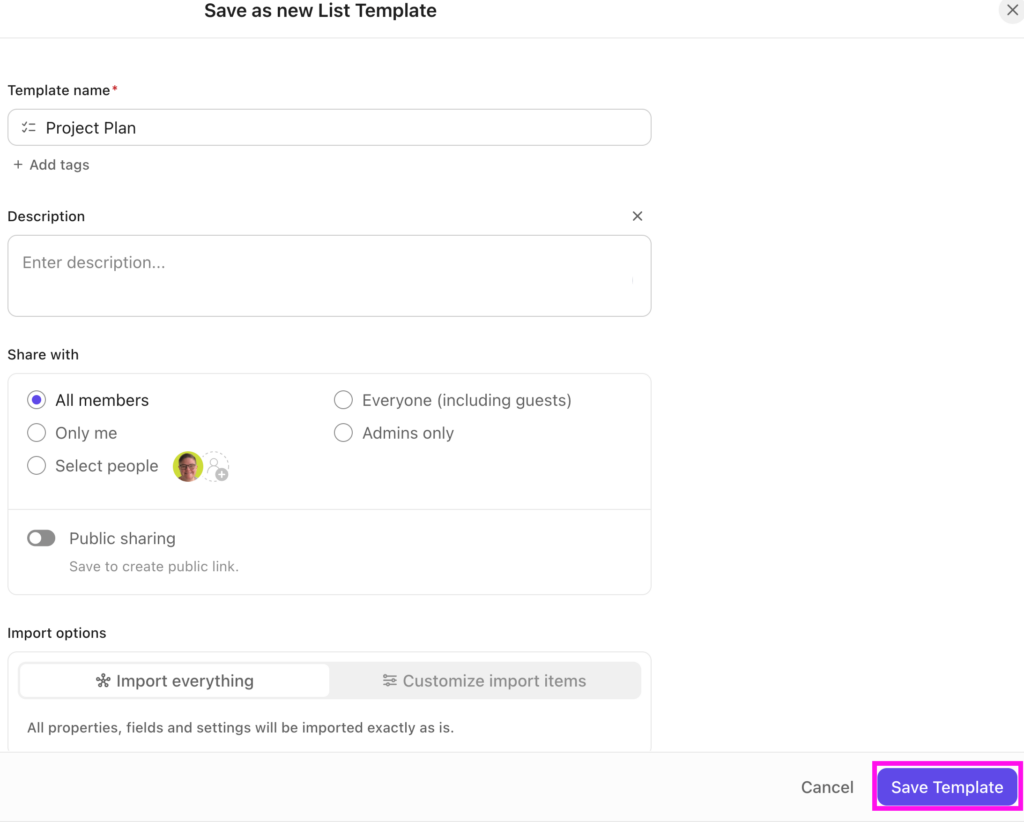
In the project options menu, select "Save as template". At this stage, you can choose to include completed tasks, attachments, and dependencies.
By carefully saving the model, we ensure that all necessary elements are replicated in future projects. This not only saves time but also helps maintain quality standards and consistency, especially in large or distributed teams.
4. Customize the template
The templates should be flexible. It's possible to add placeholders, optional tasks, or internal instructions that facilitate adaptations.
Furthermore, creating different templates for varying project types allows each team to start with the most suitable setup. For example, marketing projects may have different milestones than product development projects, while all maintaining the same execution logic and traceability.
5. Create new projects from the template
When starting a new project, select “Create project from model”. All tasks, subtasks, dependencies, and fields are cloned automatically.
This approach ensures that each project follows the defined best practices, allowing the team to focus on execution rather than initial setup. It also creates a history of efficient processes that can be adjusted and improved over time.
6. Review and update models regularly
As the team gains experience, it's important to review the models periodically. This helps to incorporate improvements, remove unnecessary tasks, and adjust dependencies.
Involving the team in this review ensures that the model reflects the reality of daily work. Updated models contribute to greater efficiency, better planning, and reduced errors, strengthening the culture of continuous improvement within the company.
Consistency and efficiency with design models in ClickUp
Creating and using project templates in ClickUp is a proven way to increase productivity, maintain consistency, and reduce errors. With well-structured templates, each project starts with clear tasks, defined responsibilities, and organized deadlines.
This approach transforms project management into something predictable and scalable, allowing teams to focus on execution and not initial setup. ClickUp provides all the necessary tools to create robust, flexible, and adaptable models for different types of projects, reinforcing efficiency and quality in all deliverables. To clarify any doubts or request your free demonstration, get in touch.